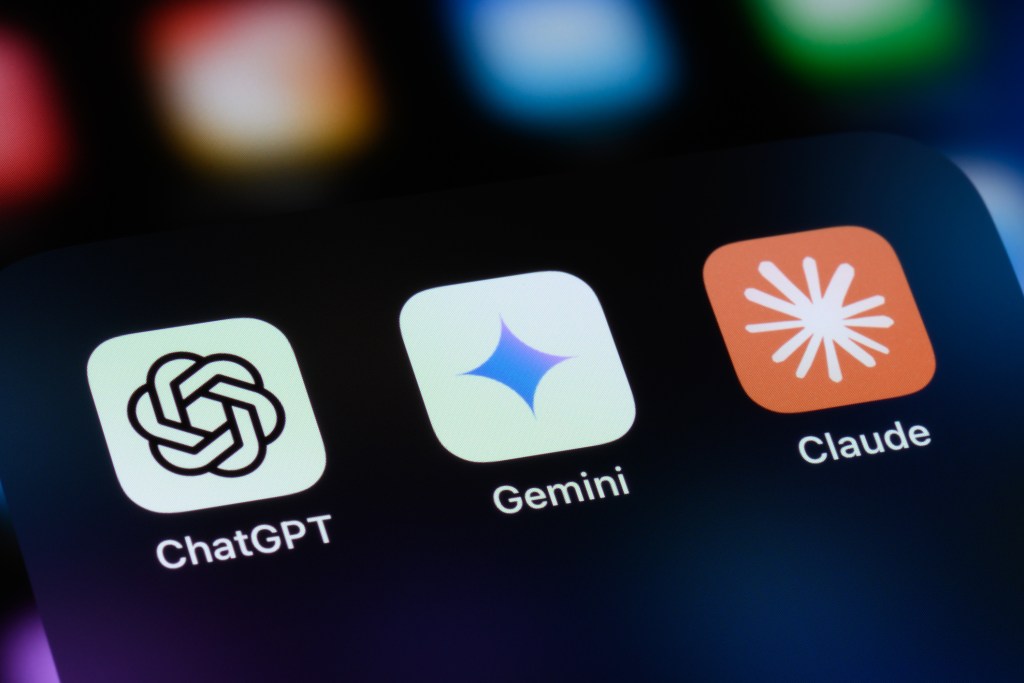
As AI tools compete for users, switching platforms is becoming a routine skill. Here’s how to move your data across without losing your history.
Anthropic is having a moment. The company last month closed a $30 billion funding round, pushing its valuation to $380 billion. Its annualised revenue has hit $14 billion. And Claude Code alone is now running at $2.5 billion – double what it was at the start of the year.
The user numbers tell a similar story. Claude downloads surged 55% in a single week in early March, knocking ChatGPT off the top of the US App Store in the process. Over a million new users are signing up every day, and Anthropic says free active users are up 60% since January.
Some of that momentum is political – Anthropic’s public stand against the Pentagon using its AI for mass surveillance and autonomous weapons drew a sharp backlash from the Trump administration, and many users responded by moving their accounts across.
But the broader shift has been building for longer, driven by Claude’s reputation for writing, coding and detailed reasoning. There’s a sharper reason people are paying attention too.
Billionaire VC Vinod Khosla has said AI could eliminate around 125 million jobs over the coming decades.
Here’s how to move your ChatGPT data over to Claude
1. Export your data from ChatGPT
In ChatGPT, go to Settings > Data Controls > Export Data. Click Confirm and OpenAI will email you a download link. It usually arrives within a few minutes, though it can take up to an hour depending on how much data you have.
2. Download and open the file
Click the link in the email to download a ZIP file. Unzip it and look for the conversations.json file — this contains your full chat history. Any documents or spreadsheets you previously uploaded to ChatGPT will be in a separate user_uploads folder.
3. Upload it to a Claude Project
In Claude, create a new Project and upload your conversations.json file directly. Claude will use it as context across every conversation inside that project, so you’re not starting from scratch. Re-upload any files from user_uploads the same way.
4. Move your custom instructions
If you used ChatGPT’s custom instructions, find them in the user.json file inside your export. Copy the relevant parts and paste them into Claude under Settings > Custom Instructions.
Want to see more content from Forbes? Follow us.
 Google News
 Preferred Source